How to Automate Google Sheets Without Writing Code (2026 Guide)
Learn how to automate Google Sheets without writing code using formulas, macros, Gemini AI, alerts, add-ons, and no-code connectors in this 2026 guide.
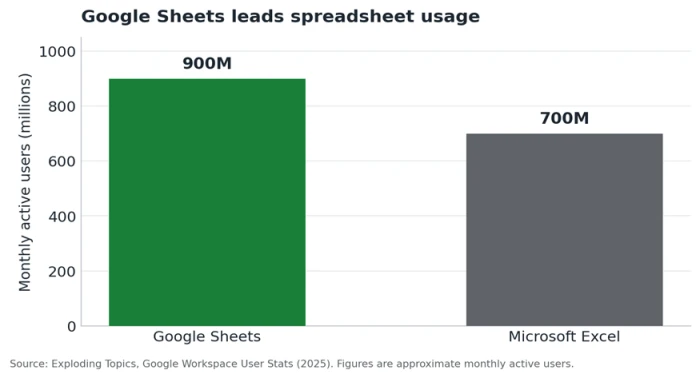
Every Monday, the same routine repeats in millions of spreadsheets. Someone pastes last week's export, drags a formula down 500 rows, reformats the dates, and emails the result to the same five people. Google Sheets serves more than 900 million people every month, and a large share of them are doing work the tool can handle on its own. The reason they don't is a myth: that automation means coding.
It doesn't. You can automate almost any repetitive Sheets task with zero code using built-in features, recorded macros, the 2026 AI tools, vetted add-ons, or a no-code connector. This guide keeps a strict promise that most articles quietly break: everything here is genuinely code-free. Where a method secretly asks you to paste JavaScript, it gets flagged and set aside, so the answer to “how to automate Google Sheets without writing code” stays honest from start to finish.
First, decide what you're actually automating
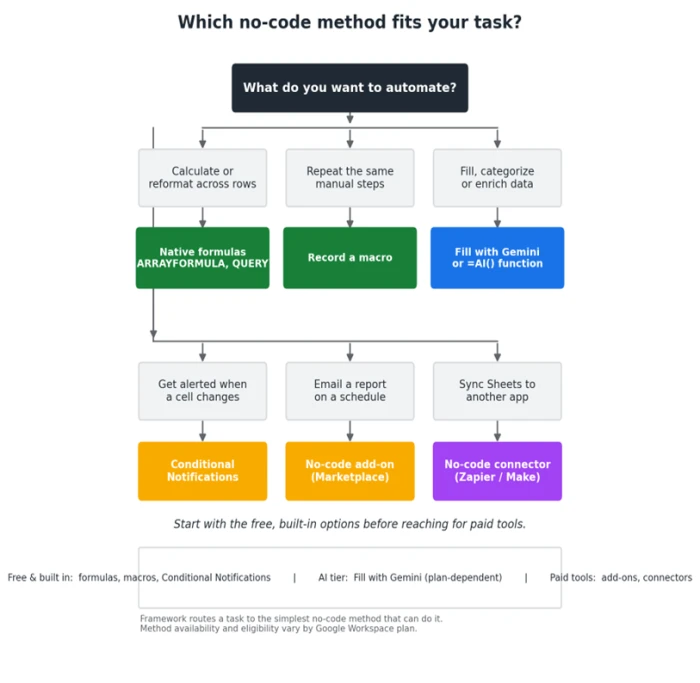
The mistake in most tutorials is starting with a list of tools. That forces you to reverse-engineer which one fits. A faster path is to start with the job. There are six repetitive spreadsheet jobs that cover the vast majority of real requests: calculating or reformatting across rows, repeating the same manual steps, filling or categorizing data, getting alerted when something changes, sending a report on a schedule, and pushing data into another app.
Match the job to the simplest method that can do it, and you avoid paying for a connector when a free formula would do. The framework below routes each job to its no-code home. Everything on the left is free and built into Sheets. The middle is the AI tier, which depends on your plan. The right is paid tooling you only reach for when the free options genuinely run out.
The no-code method decision matrix
Here is the same logic as a reference table you can scan in seconds. Difficulty is judged from a non-technical starting point, and cost reflects what you pay beyond a standard Google account.
Your job
Recommended no-code method
Difficulty
Cost
Requirement
Calculate or reformat across rows
Native formulas (ARRAYFORMULA, QUERY)
Low
Free
Any account
Repeat the same manual steps
Record a macro
Low
Free
Any account
Fill, categorize or enrich data
Fill with Gemini / =AI() function
Low
Plan-dependent
Eligible Workspace or AI plan
Get alerted when a cell changes
Conditional Notifications
Low
Free
Certain work/school accounts
Email a report on a schedule
No-code add-on (Marketplace)
Medium
Free tier to paid
Add-on install
Sync Sheets to another app
No-code connector (Zapier, Make)
Medium
Free tier to paid
Third-party account
Is this actually no-code? A quick honesty check
A surprising number of guides that promise “no code” open with a function onEdit() block. Pasting a script someone else wrote is still working with code. You have to place it and authorize it, then debug it when it breaks. This guide draws a firm line. Use this classification to keep track of what each method asks of you.
Fill with Gemini, =AI() function, plain-English Gemini editing
Fully no-code
Type a request; the AI performs the action
AI-generated Apps Script
AI writes the code, you run it
Paste, authorize, and maintain a script
Hand-written Apps Script
Requires code
Write and debug JavaScript yourself
The first two rows are the focus of this guide. The third gets an honest mention later as a bridge for people who eventually want more power. The fourth is out of scope by design. With that settled, start where the friction is lowest and the price is zero.
Method 1: Native formulas that automate themselves
Before installing anything, exhaust what formulas already do. A formula is automation: it encodes a decision once and re-applies it forever. Two functions do most of the heavy lifting, and both are underused by people who copy-paste values by hand.
ARRAYFORMULA applies logic to a whole column
Normally you write a formula in one cell and drag it down. ARRAYFORMULA wraps a formula so it expands across an entire range automatically, and it keeps working as new rows arrive. Say column B holds quantity and column C holds unit price. This single formula fills the whole of column D for every row that has data, with no dragging and nothing to extend next week:
=ARRAYFORMULA(IF(A2:A="", "", B2:B * C2:C))
QUERY turns a range into a mini database
QUERY runs a SQL-style statement over your data and returns a filtered, sorted, and summarized result that updates live. It replaces the weekly ritual of copying rows into a summary tab. This pulls completed orders, groups them by customer, and sorts by total spend:
=QUERY(Orders!A:F, "SELECT A, SUM(F) WHERE D='Completed' GROUP BY A ORDER BY SUM(F) DESC", 1)
For a refresher on the wider function library, Google keeps a public Sheets cheat sheet. Formulas have one hard boundary, though. They live inside the spreadsheet and can calculate, but they cannot act. They will not send an email, move a row, or wake up on a schedule. The moment your automation needs to do something rather than compute something, you have reached their limit. That is where the next method begins.
Method 2: Record a macro by demonstration
A macro is the purest form of no-code automation. You turn on recording, perform a task once, and Sheets writes down every step as a reusable action. There is no syntax to learn because you are demonstrating, not describing. Open Extensions → Macros → Record macro, apply your formatting or cleanup steps, then stop and name it. From then on the macro replays with a menu click or a keyboard shortcut you assign.
Macros shine for the tedious formatting jobs that never change: standardizing an imported report, applying the same header style, or building the same chart on fresh data. What they cannot do is cross boundaries. A recorded macro is tied to the spreadsheet you built it in, it can stall on sheets with tens of thousands of rows, and it stays inside Sheets. If you need automation that reaches Gmail, Slack, or another file, keep reading. The most significant change to no-code automation arrived in 2026, and it sits directly inside the sheet.
Method 3: Automate with AI, the 2026 shift
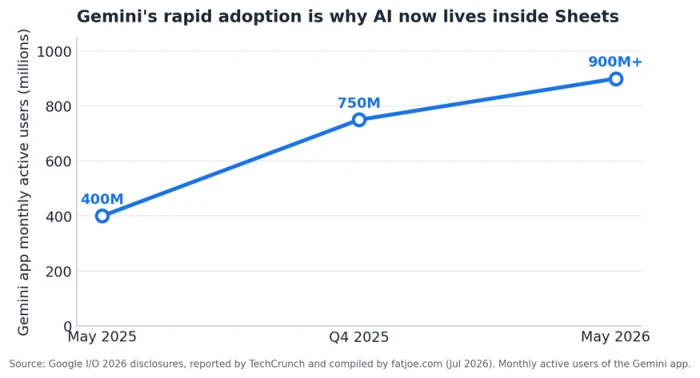
For years, the honest answer to “automate this without code” was “you can't, not without code.” That changed in 2026. Describing a task in plain English is now a first-class, code-free way to make Sheets work for you, and it is the single biggest reason older automation guides feel out of date.
Fill with Gemini for data entry and enrichment
Google launched Fill with Gemini in Sheets on April 22, 2026. It reads the context of your table, works out what a column needs, and fills it. According to Google's own 95-participant study, it completes 100-cell data-entry tasks nine times faster than typing values by hand. There are two ways in: drag from a column that already has one completed cell so Gemini infers the pattern, or select empty cells and write a plain-English prompt for what to put there.
A concrete example: you have a column of raw customer feedback and want each row tagged. Select the empty tag column, click Fill, then write “classify each comment as Positive, Neutral, or Negative.” Gemini fills the column without a nested formula in sight. It is built for exactly the categorizing and standardizing work that used to eat an afternoon.
Plain-English editing with Gemini in Sheets
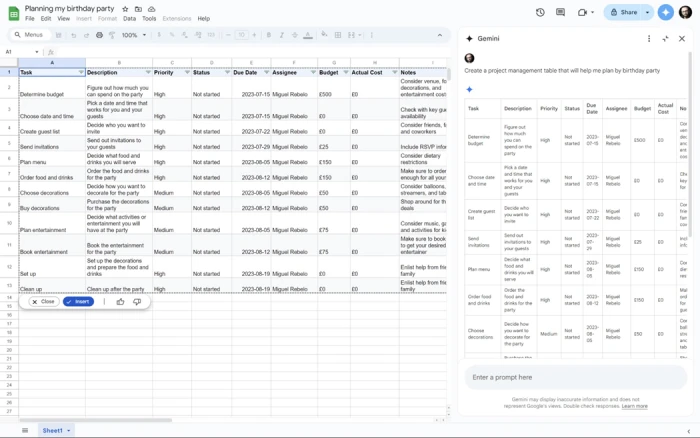
Beyond filling cells, Gemini can build, organize, edit, and clean whole spreadsheets from a conversational instruction. Google reported the model reached a 70.48% pass rate on SpreadsheetBench, an independent benchmark of real-world spreadsheet edits, which is stronger evidence than a vendor's own numbers because the test is public. Ask it to “delete archived rows, apply conditional formatting to overdue items, and add a notes column,” and it handles the sequence. Usefully, it presents a plan and waits for your approval before touching anything, so you stay in control of financially sensitive sheets.
The =AI() function for in-cell intelligence
The =AI() function brings a language model into a cell like any other formula. It can summarize, extract, or classify inline, so =AI("categorize this expense as Travel, Software, or Marketing", A2) returns a label per row. It composes with ARRAYFORMULA, letting you process a full column of messy text with a pattern that native functions never could.
Eligibility and gotchas to read before you rely on it
Fill with Gemini is an entry point to the AI function and disappears if your admin has switched off Workspace smart features. It is available on Business Standard and Plus, on Enterprise Standard and Plus, on the AI add-ons, and on consumer Google AI Pro and Ultra. Promotional higher usage limits ran only through July 15, 2026; per-user caps apply after that, so heavy batch runs need planning around your plan's ceiling. Source: Google Workspace Updates.
Method 4: Native alerts and scheduled actions
AI is powerful, but plenty of automation is simpler than that. Often you just want the sheet to tell you when something happens. Google has a built-in feature for this that most guides skip in favor of a script, which is odd, because the native option needs no add-on and no code.
Conditional Notifications: email alerts when a cell changes
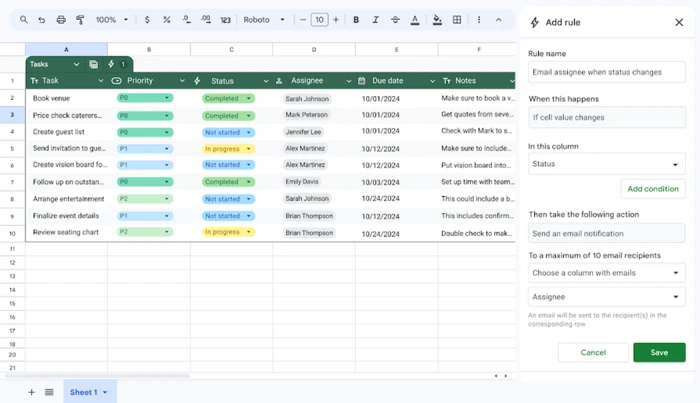
Open Tools → Conditional notifications, then build a rule in plain language: when a value in a chosen range changes to a condition you set, email named recipients. A common setup is alerting a manager the moment a status column flips to “Overdue,” or pinging finance when a budget cell crosses a threshold. You define the rule with a few clicks and it runs on Google's servers, so it fires whether or not your browser is open.
Where Conditional Notifications falls short
Per Google's Docs Editors Help, the feature is only available to certain work or school accounts, and it does not support group email addresses or non-Google recipients such as Outlook and Yahoo. It will not fire on external data changes (for example a column fed by IMPORTRANGE), and volatile functions like TODAY() can miss updates that happen while the document is closed. Check these limits against your use case before depending on it.
Conditional formatting as a passive visual alert
When an email is overkill, let the sheet flag itself. Conditional formatting changes a cell's color based on its value, so an inventory list can turn any product under 20 units red automatically. It is the zero-setup alarm that anyone opening the sheet sees at a glance, with no rule to configure beyond the color trigger. For anything more elaborate than Google's native alerts allow, the Marketplace fills the gap.
Method 5: No-code add-ons from the Marketplace
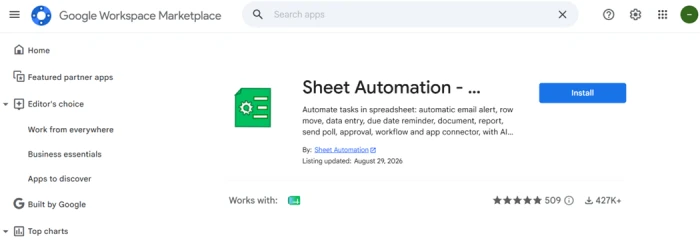
When native features stop short, purpose-built add-ons install from the Google Workspace Marketplace in a few clicks and run on a schedule. They cover the jobs Google leaves thin: rich recurring email reports, rule-based row actions like moving completed orders to an archive tab, and alerts routed to Slack or Teams. You configure them through a sidebar with dropdowns and filter builders, never a code editor.
A worked example: schedule a recurring email report
Suppose you email the same dashboard tab to your team every Monday at 9 a.m. A reporting add-on removes the ritual entirely:
1. Install a reporting add-on from the Marketplace and open it from the Extensions menu.
2. Choose what to send, whether a full tab or a specific cell range.
3. Set the recipients and the schedule, such as weekly on Monday morning.
4. Save. The add-on runs on Google's cloud, so the report goes out even while you are offline.
Because the report reads live data at send time, it always reflects the latest values. A number updated at 8 a.m. appears in the 9 a.m. email with no manual refresh.
How to vet an add-on before you trust it
Add-ons range from excellent to abandoned, and each one gets access to your data, so treat installation as a small security decision. Run through this checklist first:
• Reviews and install count: thousands of installs and recent reviews signal a maintained tool.
• Permissions requested: be wary of an add-on asking for far more access than its job needs.
• Publisher and support: a named publisher with a working support channel beats an anonymous listing.
• Data handling: check where your data goes and whether it leaves Google's environment.
Add-ons keep your automation inside Sheets. When the job is to move data between Sheets and a completely separate app, a different category of tool does it better.
Method 6: No-code connectors to other apps
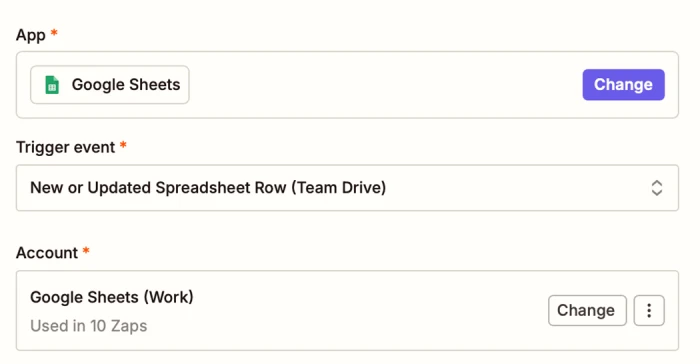
Connectors work on simple logic: a trigger in one app fires an action in another. When a form is submitted, add a row. When a row changes, post to Slack. You build these flows in a visual editor by picking apps from menus, which is why they are the standard answer for cross-app automation that touches a CRM, a chat tool, or an external database.
Which connector fits which job
The main no-code platforms overlap but each has a sweet spot. Cost matters here more than anywhere else in this guide, because these are the methods with recurring fees.
Connector
Best for
Direction / model
Free-tier reality
Zapier
Connecting Sheets to thousands of apps quickly
Trigger to action, one-way
Caps at 100 tasks/month
Make
Multi-step flows with branching and transforms
Visual multi-step scenarios
More generous free ops
Sheetgo
Consolidating or splitting data across spreadsheets
Spreadsheet-to-spreadsheet
Limited free connections
Unito
Two-way sync that updates from either side
Bidirectional sync
14-day trial, then paid
A practical warning on cost. Zapier's free plan caps at 100 tasks a month, and most real business workflows need a paid plan that starts around $20 to $50 a month and scales with volume (source: Steve's IT Pro). That is fine when a connector saves hours of work, but check the math before committing, because the free native methods above cost nothing.
A note on AI-generated Apps Script
You will see suggestions to have Gemini write an Apps Script for you from a plain-English prompt. It works, and it is a reasonable bridge when you outgrow the no-code options. Be clear-eyed about what it is, though. You still paste the generated code into the editor, authorize it, and fix it when Google changes an API underneath it. That is the “AI writes the code, you run it” row from the honesty check earlier. It is a genuine option, but it is not code-free, so it sits outside the promise of this guide rather than inside it.
Choosing the right method for your plan and budget
The through-line of every method above is the same: reach for the simplest thing that does the job. In practice that means a clear order of preference. Start with free native features, because a formula or a Conditional Notification rule costs nothing and never expires. If your account is eligible and the task is filling, categorizing, or editing, the AI tier is the fastest path and still code-free. Only when both run out should you install an add-on, and only when automation must leave Sheets entirely should you pay for a connector.
Your Google plan quietly decides part of this. Conditional Notifications is limited to certain work and school accounts, and the Gemini features need an eligible Workspace or consumer AI plan with smart features switched on. Before promising a stakeholder an automation, confirm the feature actually exists on the account it will run on. It is the detail that turns a confident plan into a support ticket.
Start here in 10 minutes
If you want one working automation today, skip the deliberation and route by your job:
• Repetitive calculation or cleanup: write one ARRAYFORMULA or QUERY and delete the manual step for good.
• Same formatting every week: record a macro and bind it to a shortcut.
• Messy column to categorize: select it and use Fill with Gemini if your plan supports it.
• Need to know when a value changes: set a Conditional Notifications rule under the Tools menu.
• Recurring report: install a vetted reporting add-on and set the schedule once.
The mental model worth keeping is small: automation is encoding a decision once so you never make it again. Take a formula that classifies every new lead, a macro that reformats a weekly export, or a rule that emails you the instant inventory drops. Each one removes a handoff that a person would otherwise repeat forever. None of them required a line of code, and the ones that would have, three years ago, now start with a sentence in plain English.





Discussion
Join the discussion and share your perspective.